Creating the Polaroid Look: Styling High-Detail Product Swatches
For products where detail is everything—like jewelry, intricate fabric patterns, or artisanal textures—a standard circle often isn't enough. The Polaroid Swatch style provides a larger, framed canvas that highlights the fine details of your variants while adding a premium, editorial feel to your page.
Why Choose the Polaroid Style?
The Polaroid look mimics a physical photograph, complete with a distinct frame and a larger display area. It is the best choice for:
High-Detail Items: Showing the specific grain of wood, the weave of a fabric, or the sparkle of a gemstone.
Visual Storytelling: Giving your storefront a "boutique" or "gallery" aesthetic.
Reduced Zooming: Allowing customers to see enough detail in the swatch that they don't always need to click into a full-screen gallery.
How to Set Up Polaroid Swatches
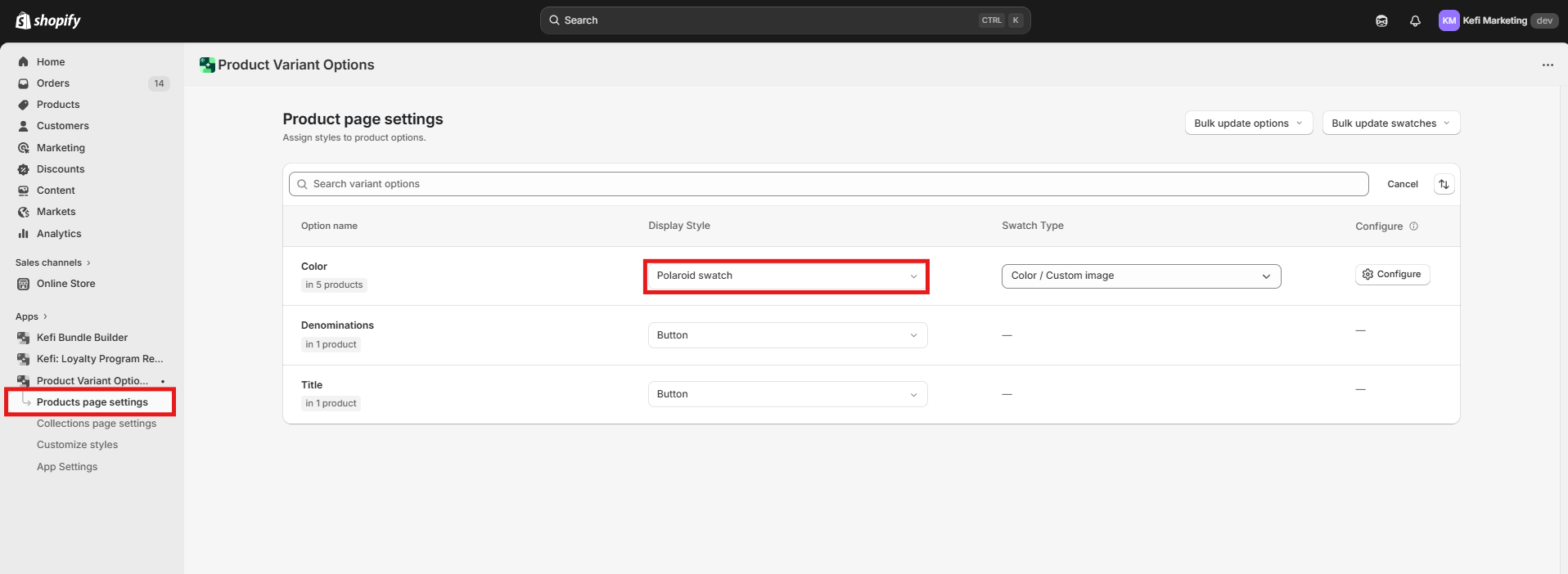
1. Assign the Style
Navigate to Product Page Settings (or Collection Page Settings) and find the variant you want to transform (e.g., "Finish" or "Pattern"). In the Display Style dropdown, select Polaroid Swatch.
2. Choose the Visual Source
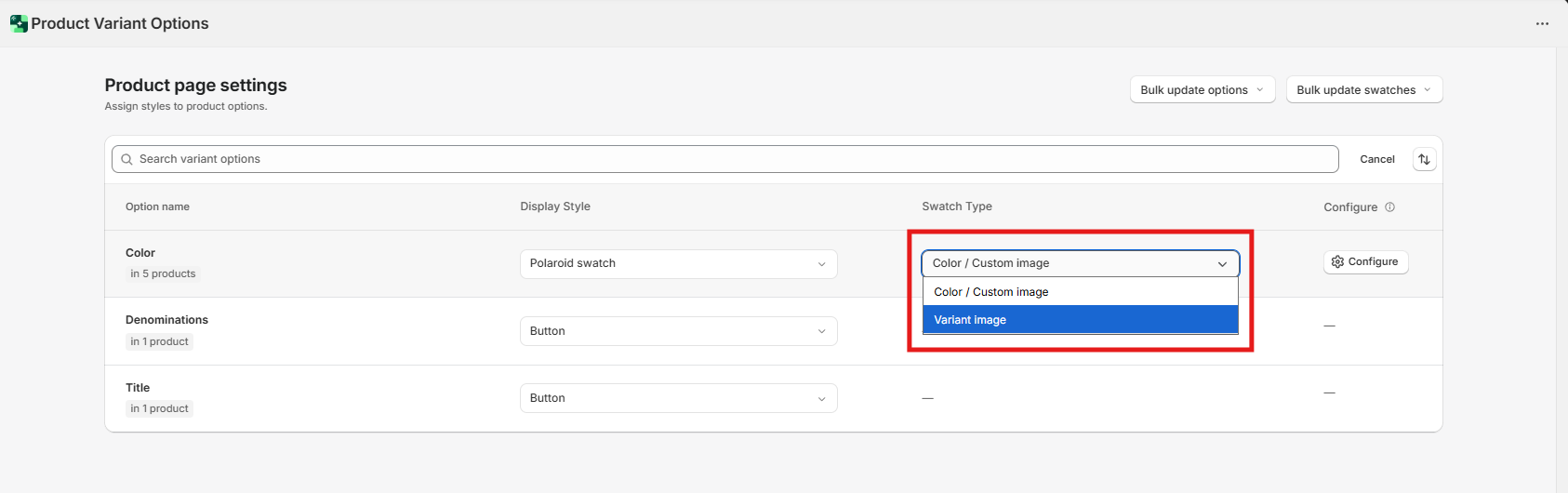
For a true "photo" look, set the Swatch Type to Variant Image. This tells the app to pull the high-resolution images you’ve already uploaded to your Shopify admin.
3. Customize the Frame
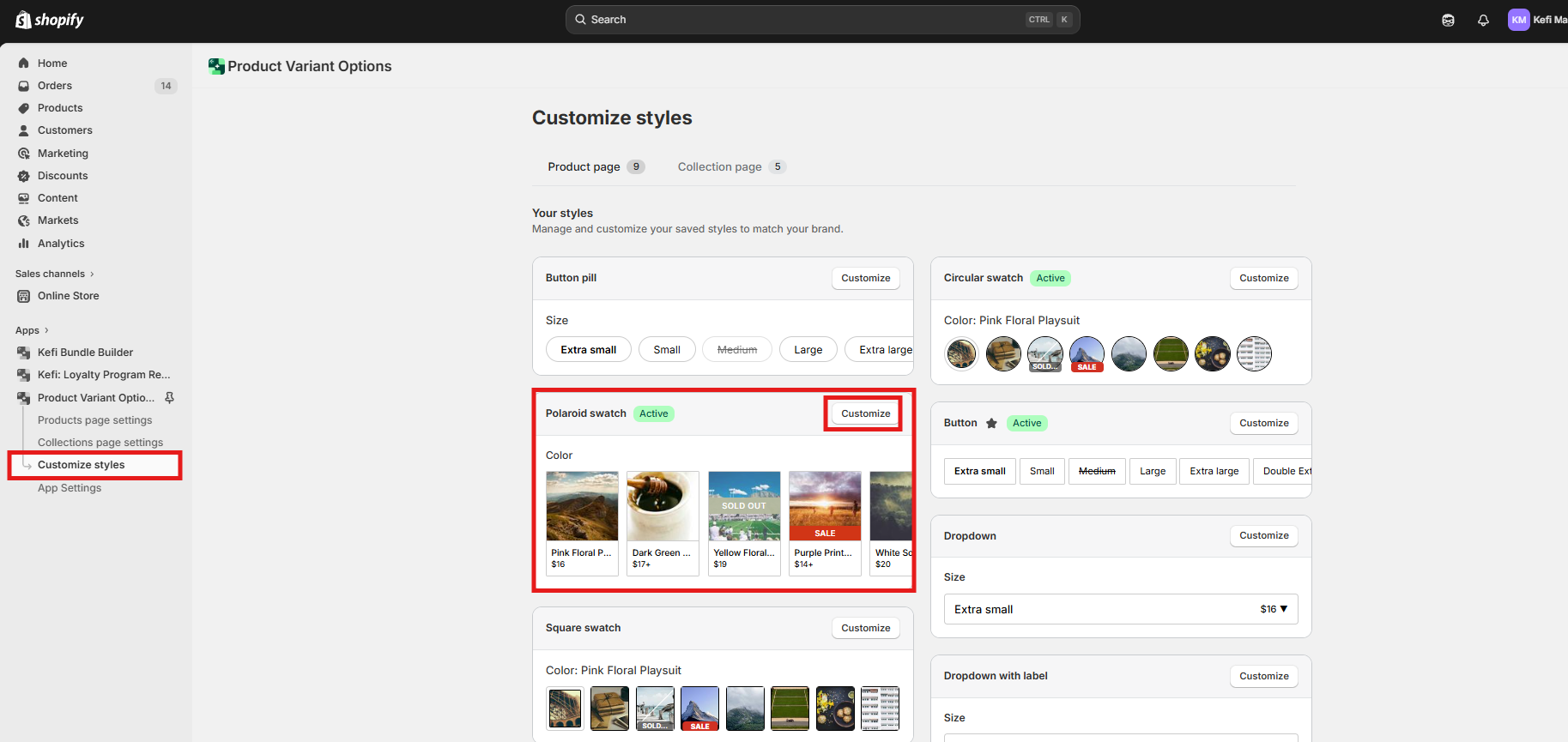
Go to the Customize Styles tab and click Customize next to the Polaroid Swatch entry. Here, you can refine the "photo frame" effect:
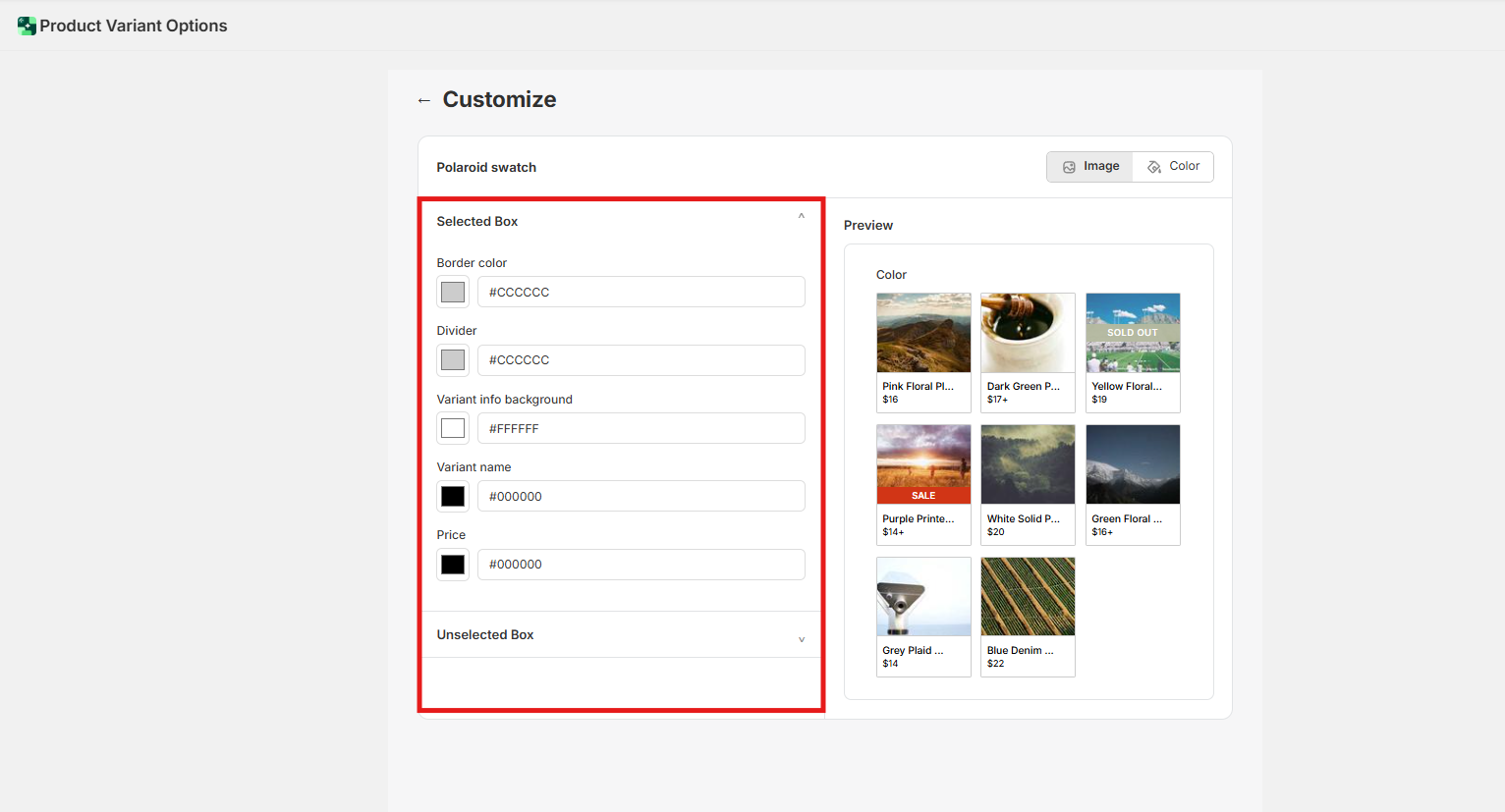
Outer Border: Set a clean white or off-white color to mimic traditional photo paper.
Inner Border: Use a thin, dark inner border to act as a "matte," making the product photo inside really pop.
The Selected State: To signal a selection, try using a slightly thicker or darker outer border rather than a color change, which maintains the "photo" aesthetic.
Best Practices for Polaroid Swatches
Consistent Aspect Ratios: Ensure your variant images are cropped similarly (e.g., all squares). If one image is a tall rectangle and another is a wide landscape, the "Polaroid" frame may look inconsistent.
Use High-Resolution Crops: Since the Polaroid style is larger than a standard circular swatch, use close-up shots of your products so the customer can actually see the texture.
Spacing Matters: Because Polaroid swatches are wider than standard buttons, ensure you have "Auto-spacing" enabled in the customize menu to prevent them from feeling cramped on mobile screens.
Pro Tip: The Active Badge
If you have multiple styles configured, always look for the green Active badge in the Customize Styles list. This confirms you are editing the exact Polaroid settings currently visible to your customers.
Need Help?
Our support team is dedicated to helping you build a beautiful storefront:
Live Chat: Available directly within the app dashboard.
Email Support: [email protected]